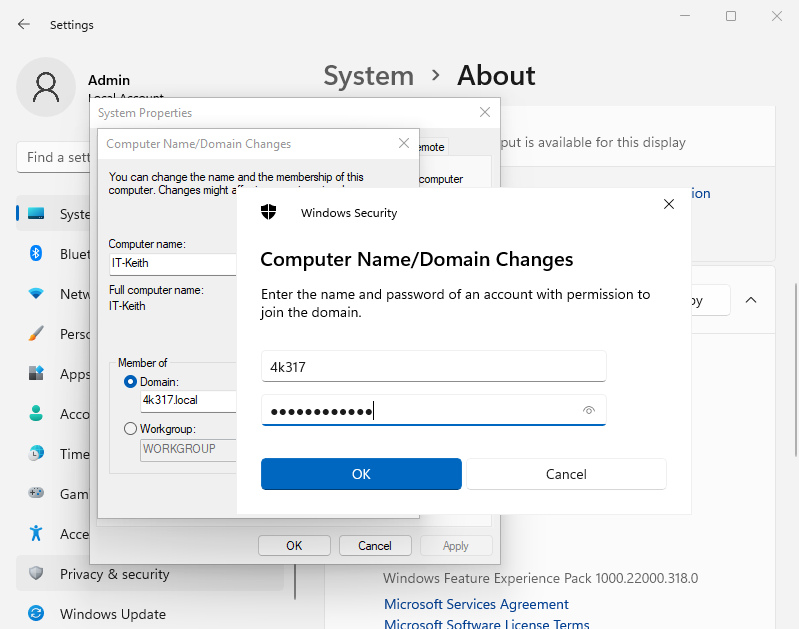
This project will consist of developing a GPO to create a default desktop view for users. We will also be joining a workstation to the domain.
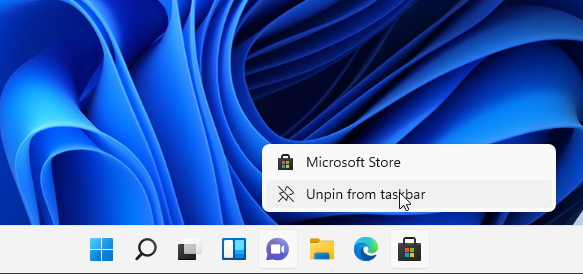
I want to set it so when users login the Edge and Microsoft Store icons are not pinned to the taskbar. I also want to move the Start Button to the left side.
Start by unpinning the icons.
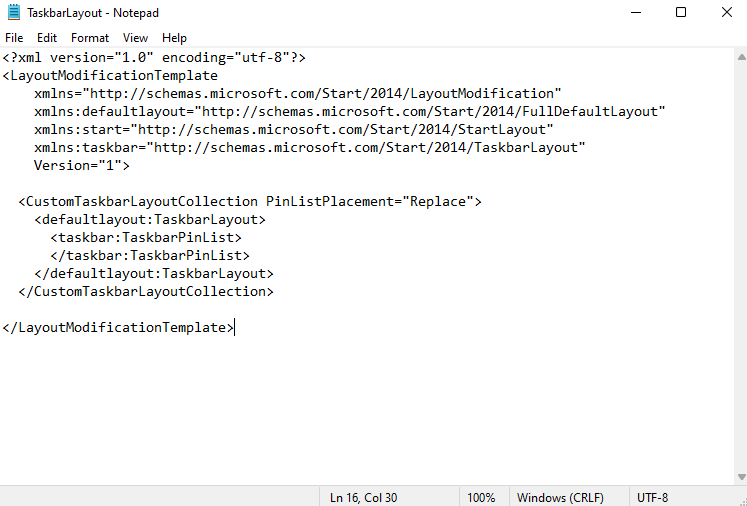
Using powershell, Export-StartLayout -Path C:\temp\Taskbarlayout.xml , to export the Taskbar layout.
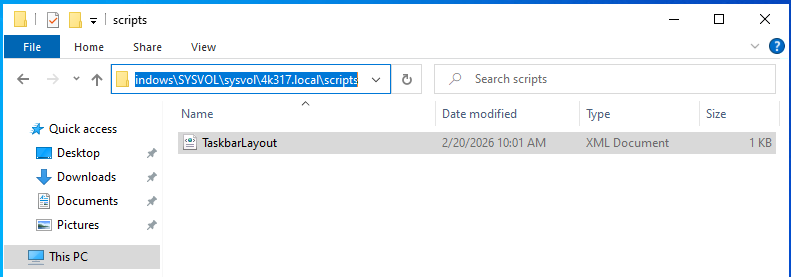
I moved the xml file over to the domain controller and placed it in the following location:
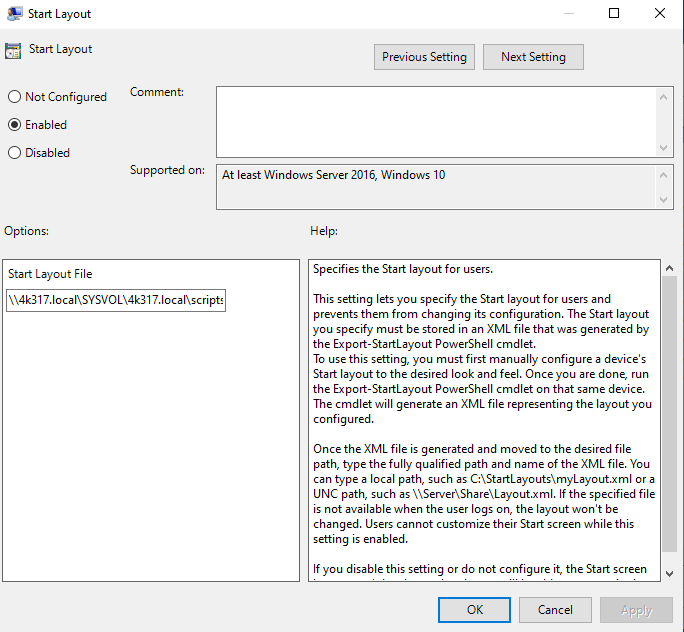
\\4k317.local\SYSVOL\sysvol\4k317.local\scripts
Now lets begin creating the GPO.
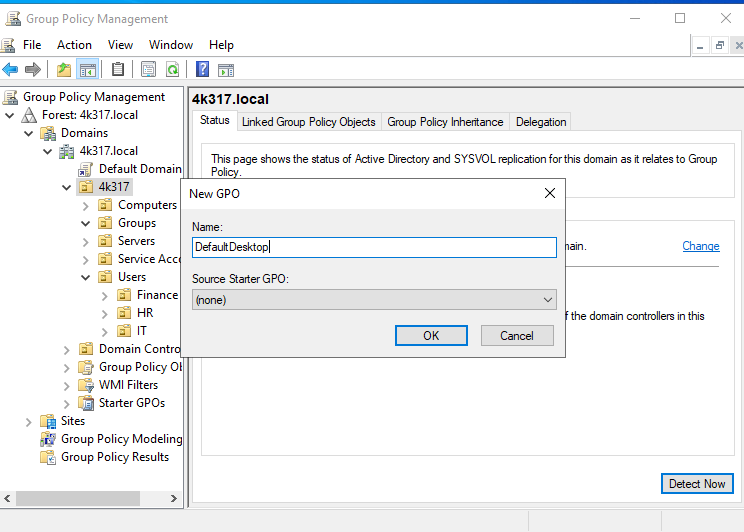
Open Group Policy Management, Right-click the “4k317” OU, Select “Create a GPO in this domain, and Link it here”
Create the name and select OK
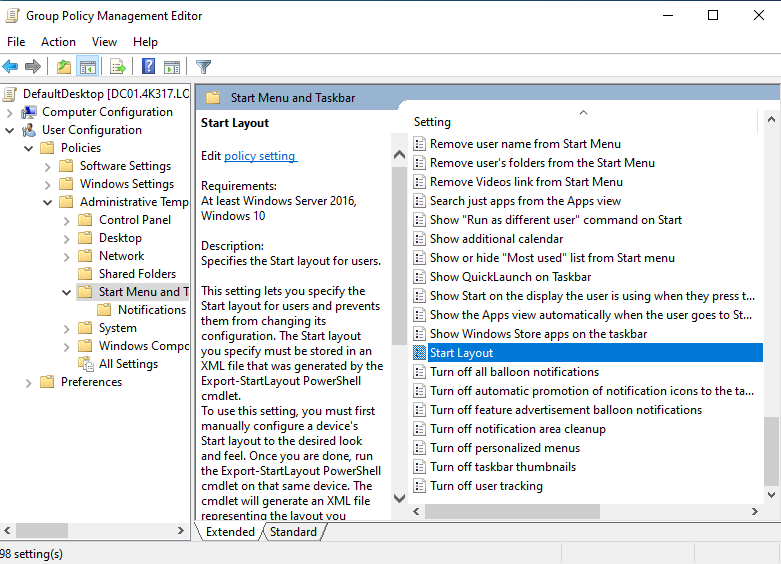
Right click the newly created GPO, ‘Edit’, Navigate the following: User Configuration, Policies, Administrative Templates, Start Menu and Taskbar, Double click ‘Start Layout’
Set to Enabled and in Start Layout File, list the path to the file. Our path will be:
Now, I would like to set the Windows Start Button to be aligned on the left side.
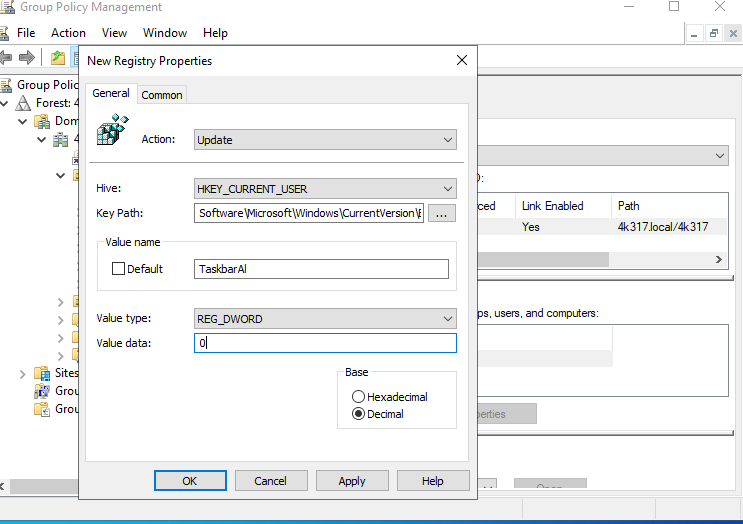
After researching, I could only find one way to do it. Set a registry key to move it over.
From the GPO:
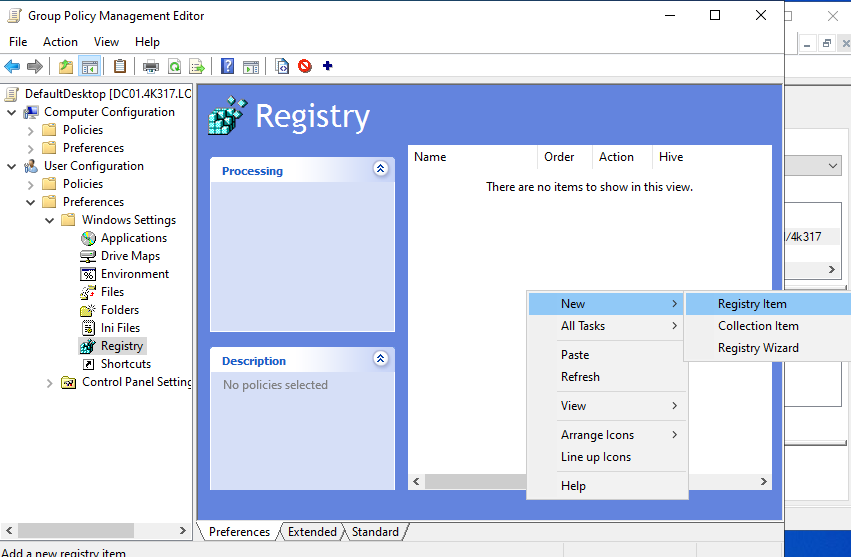
User configuration → Preferences → Windows Settings → Registry → Right click → New → Registry item
Enter the following values. Hit ‘Apply’, ‘OK’
Time to test. We will be joining a workstation to the domain and then logging into a user account.
Rebooted the workstation and logged in as a test user.
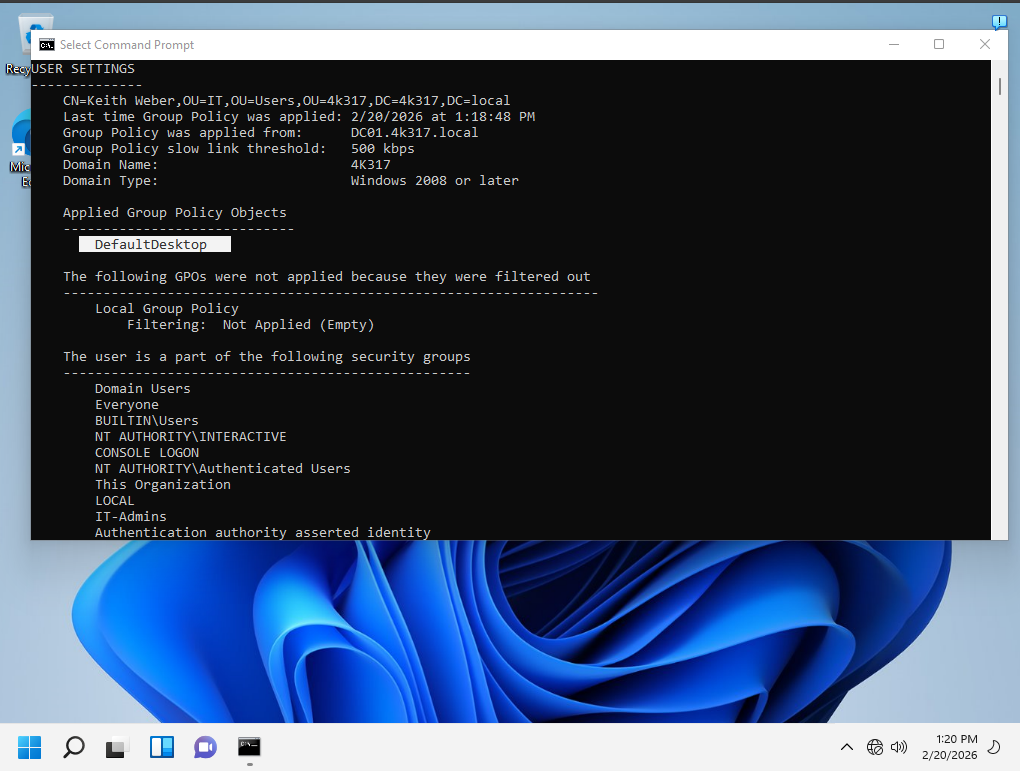
Confirmed the GPO was applied by running GPRESULT /R
Also notice that the start button is on the left side + EDGE and Microsoft Store are unpinned
Another completed project! Thank you for taking a look. I am currently deciding on what to work on next but am leaning towards configuring DHCP server. The workstation is currently on a static IP.