ISO: Windows Server 2022 Standard (Desktop Experience)
Lets configure the static IP
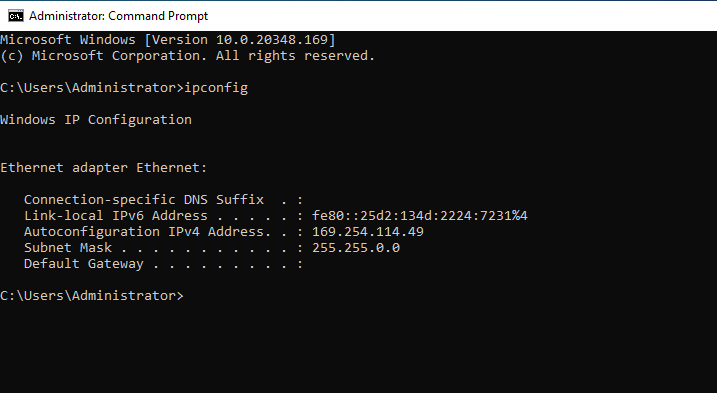
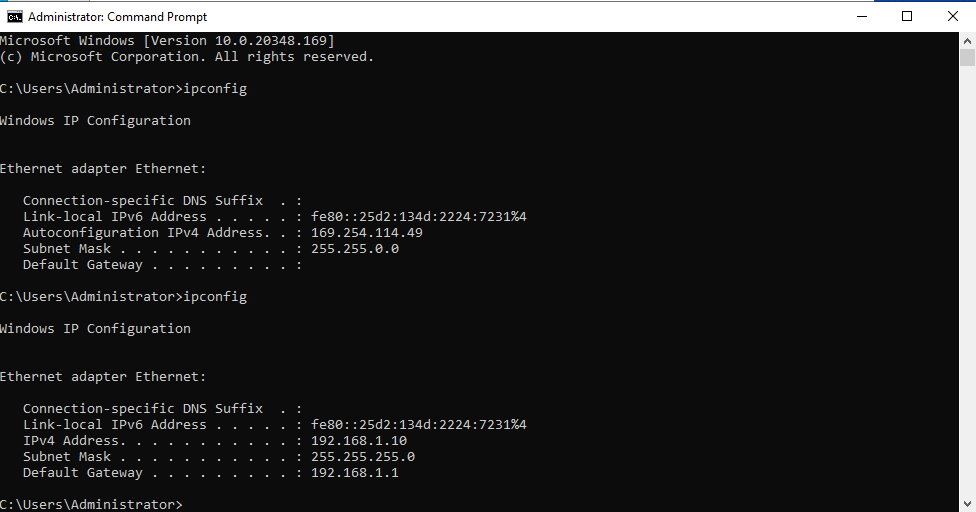
IPCONFIG shows an APIPA of 169.254.114.49
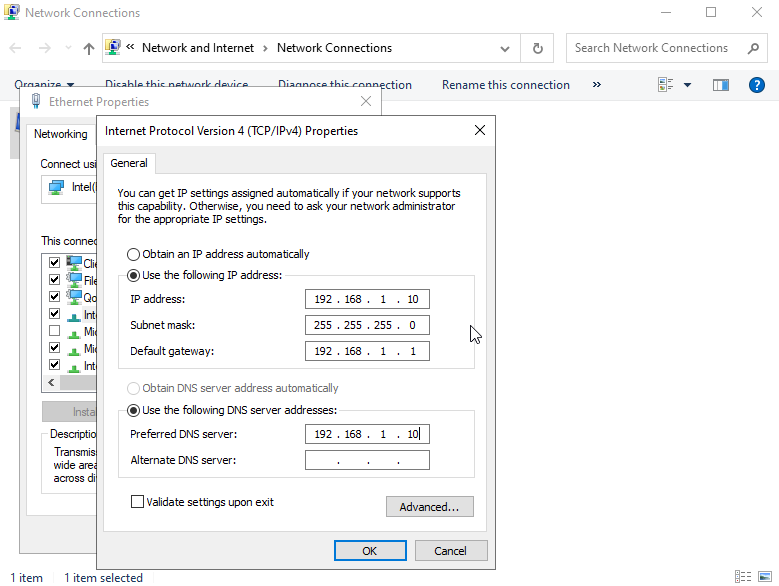
Went into IPv4 Settings to set the following:
IP Address: 192.168.1.10
Subnet Mask: 255.255.255.0
Default Gateway: 192.168.1.1
DNS: 192.168.1.10
Confirmed Changes
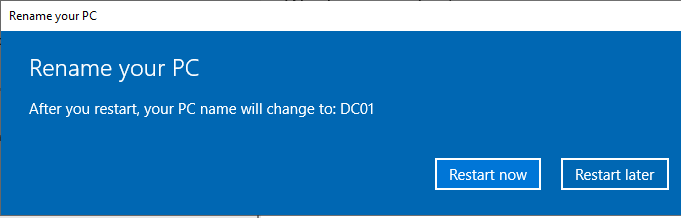
Renamed to DC01 then reboot
Time to add Active Directory Domain Services
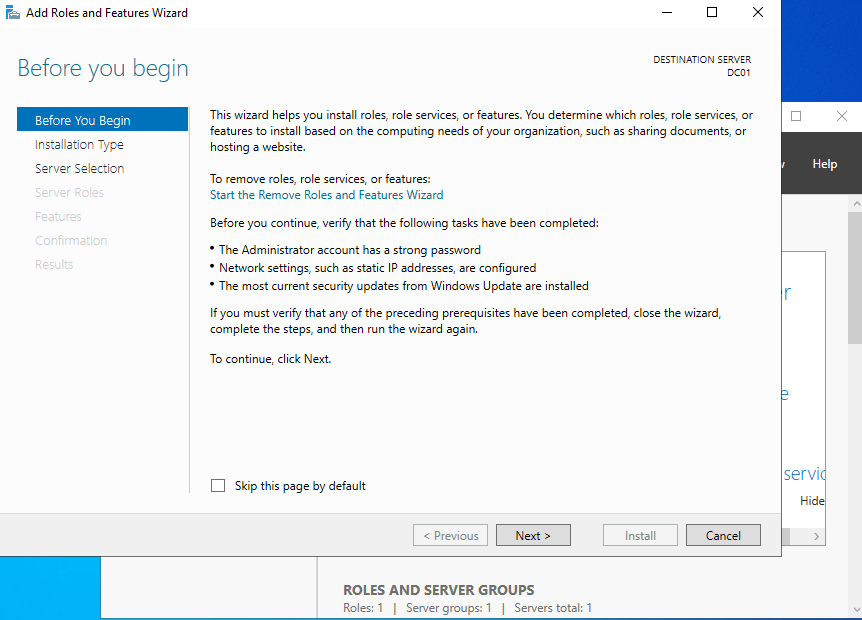
From Server Manager, ‘Manage’ -> ‘Add Roles and Features’
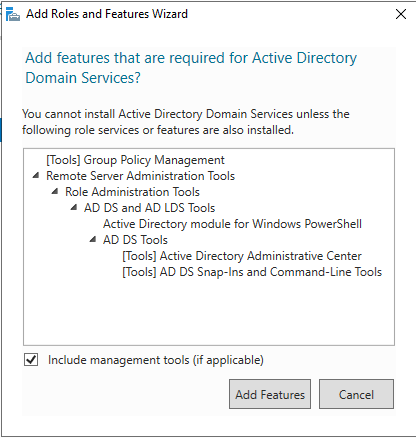
Next all the way to ‘Server Roles’, select ‘Active Directory Domain Services’, click ‘Next’, Click ‘Add Features’
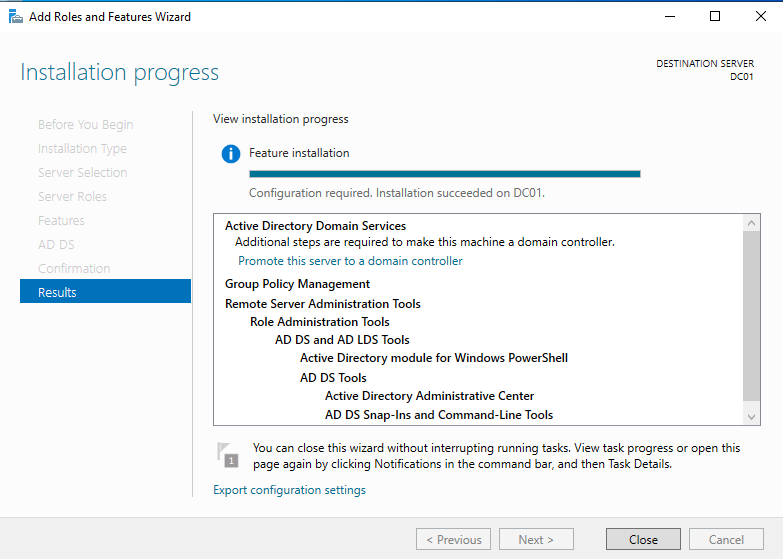
Allow installation to complete, then click ‘Close’
Time to Promote Server to a Domain Controller
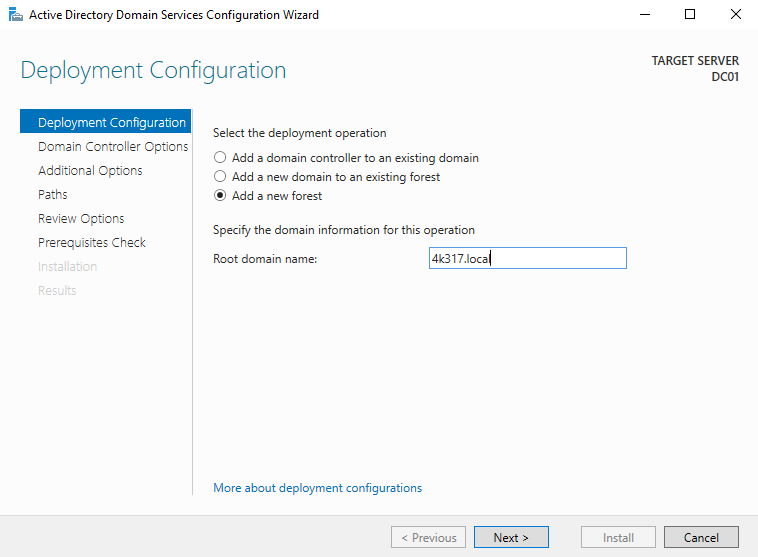
From Deployment Configuration, Select ‘Add a New Forest’
I set the root domain to 4k317.local
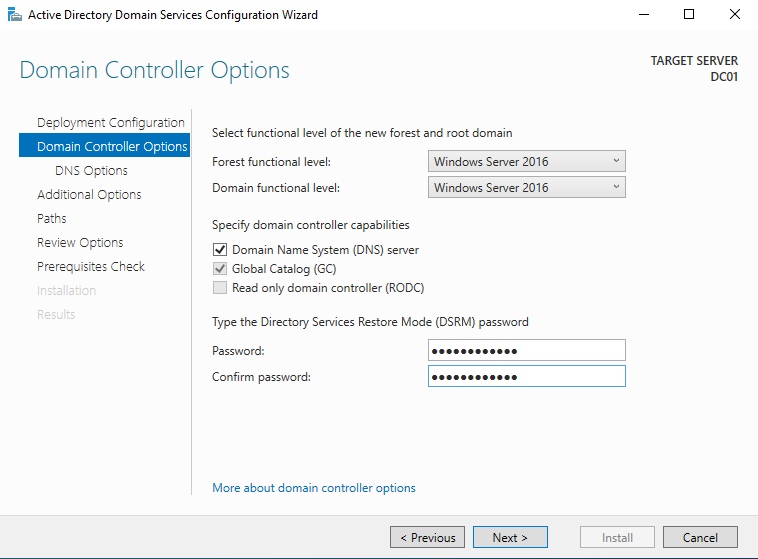
Left all Domain Controller Options to Default.
Forest Level: Defines the Active Directory feature set available across the forest.
Domain functional level: Determines the Active Directory features available within the domain.
Domain Name System (DNS): Enabled
Determines the Active Directory features available within the domain.
Global Catalog (GC): Enabled
Allows the domain controller to store a partial copy of all objects in the forest
Set DSRM Password
Sets a secure local administrator password used to access recovery mode for Active Directory maintenance and disaster recovery.
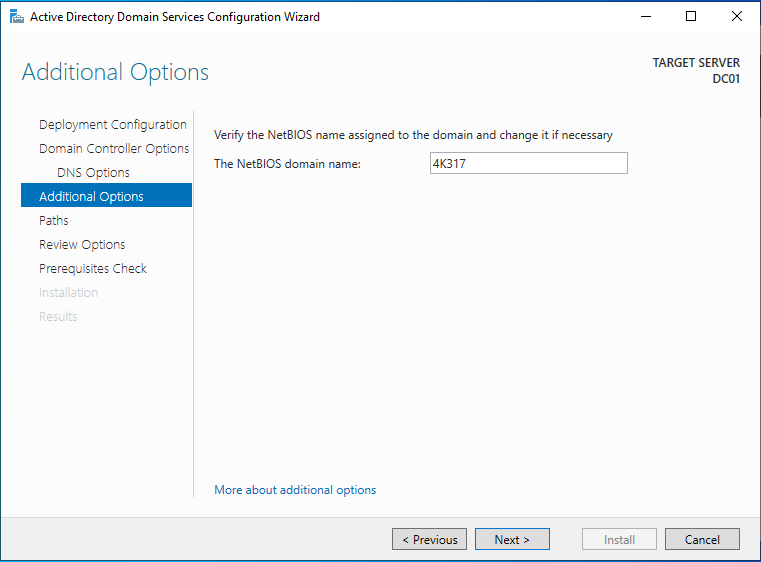
Set NetBIOS Name: 4k317
Defines the short (pre–Windows 2000) domain name used for legacy system compatibility and identification within the network.
Left additional options default, confirmed prerequisites are met and began installation.
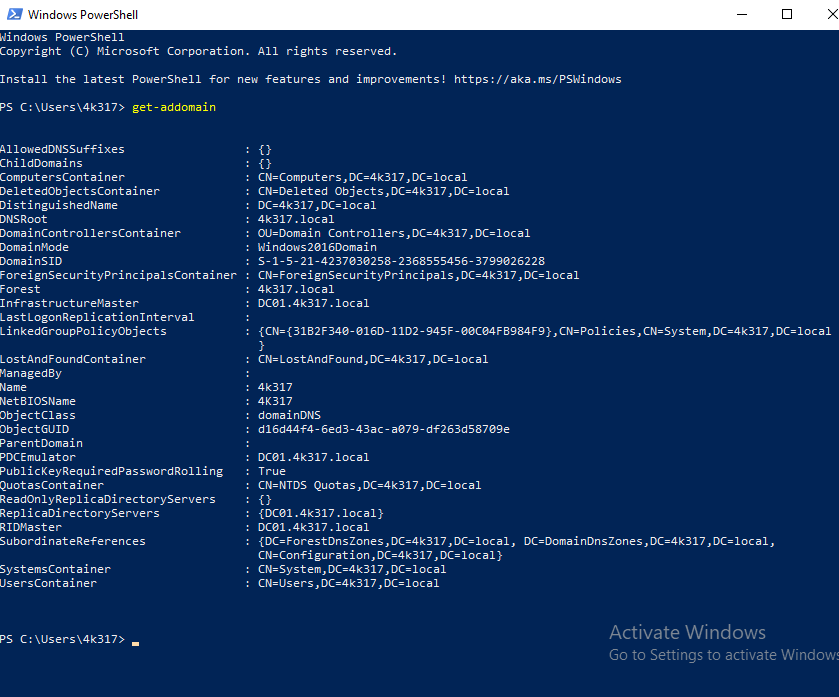
Confirmed successful using powershell command: Get-ADDOMAIN
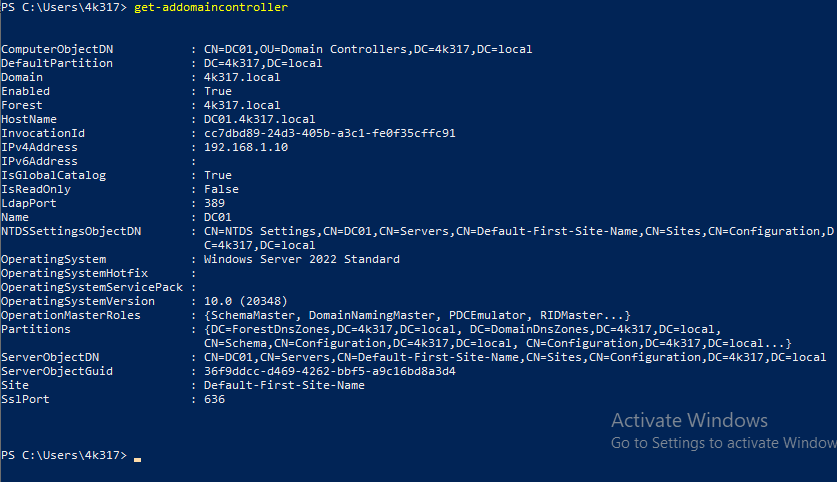
Run Additional Powershell command: Get-ADDomaincontroller
Project Complete!
Thank you, my next objective will be configuring Active Directory Users and Computers. Creating users, organizational units, security groups and adding our first computer to the domain.